


About Us
The Division of University Communications works to enhance the awareness of The Catholic University of America by communicating the accomplishments of its students, faculty, and staff.
Learn More

Communicating news and information about The Catholic University of America is the mission of the Division of University Communications. Through our work with the media and the University community, we strive to enhance the perception of Catholic University as a comprehensive Catholic institution of higher learning dedicated to the pursuit of truth through reason, faith and service.
We look forward to serving your needs in the follow areas:

The Division of University Communications works to enhance the awareness of The Catholic University of America by communicating the accomplishments of its students, faculty, and staff.
Learn More
The University's writers, editors, designers, and photographer work together to produce a broad range of print and online publications.
Learn More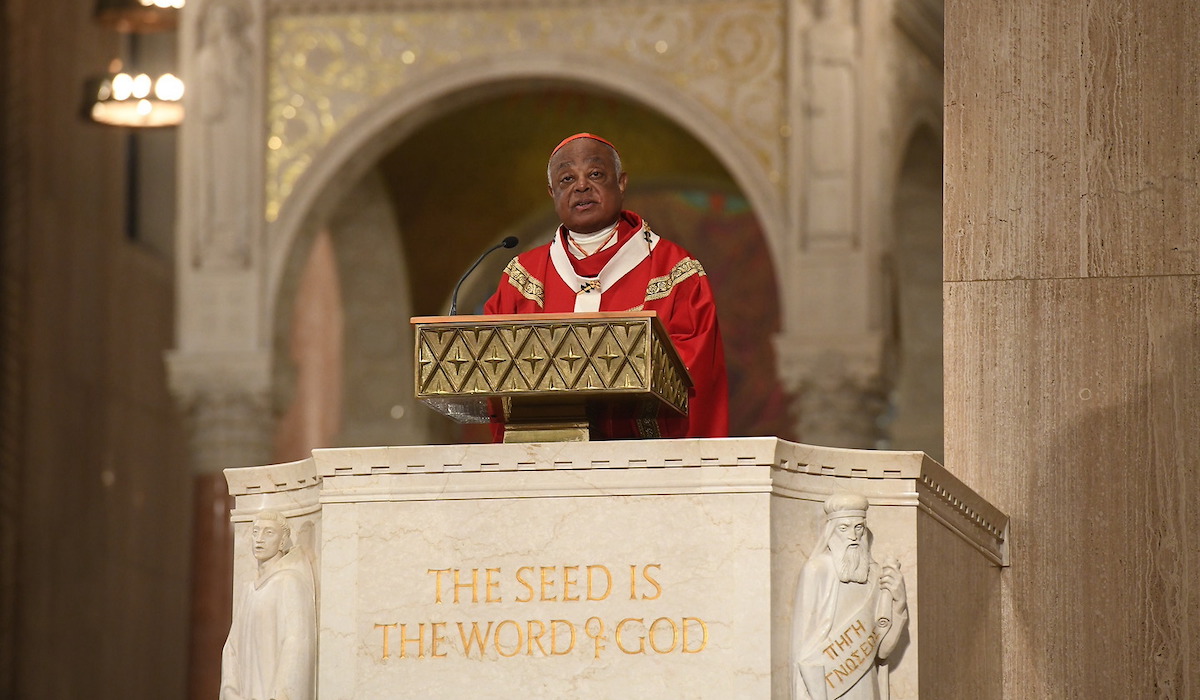
Find copies of speeches and homilies delivered at Catholic University.
Learn More